


Q2 Image Magic: Editing
Editing Activity
In this Quest, you will explore and use one or more free image editing resources to enhance a photo or image. Select the picture you already downloaded in Quest One, or use an alternative if you prefer.
Step 1. Download or make a copy of the 10.Q2 Image Magic Editing Activity document for this editing activity.
Step 2. Follow the directions in the document. You will try some of the editing features in one or more of the image editing sites listed:
- iPiccy - iPiccy is a user-friendly editing application (image files: jpg or png).
- Pixlr - Pixlr has a more detailed menu of options.
- Canva Online Photo Editor is easy to use. We suggest taking a tour of the features when offered. If your teacher has created a class account in Canva, follow the directions to log in.
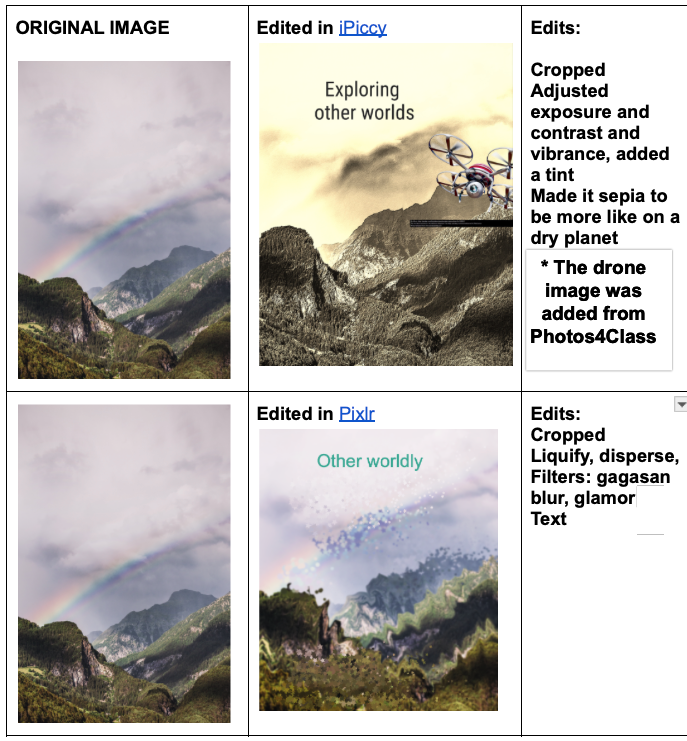
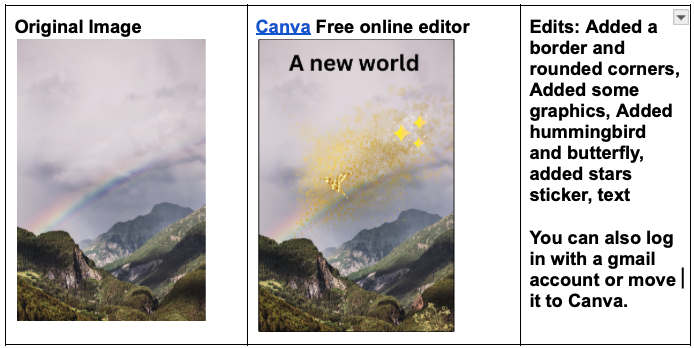
Step 3. View an example on the right of edits made with these three image editor resources of an image for a science class: topic: Exploring Other Worlds.
Step 4. After completing this activity, find a classmate who used a different editing site than you did and share what you discovered as you edited your images.
- Have your classmate try to guess what you are trying to communicate in your edited picture.
- Compare and contrast the features of the different editing sites you used.
- Are there changes or improvements you would make based on your sharing?
Step 5. Check with your teacher about submitting your completed Image Magic: Editing Activity.
Examples of edits created with iPiccy, Pixlr, and Canvas online photo editors:
- The Original image is located on Lifeofpix.
- In the first set of images, Only iPiccy has a drone image available. The drone image in the iPiccy edited image is from PhotosForClass.

Competencies & Standards
MITECS Michigan Integrated Technology Competencies for Students, and
1. Empowered Learner
c. Students use technology to seek feedback that informs and improves their practice and to demonstrate their learning in a variety of ways.
d. Students understand fundamental concepts of how technology works, demonstrate the ability to choose and use current technologies effectively, and are adept at thoughtfully exploring emerging technologies.
2. Digital Citizen
b. Students demonstrate empathetic, inclusive interactions online and use technology to responsibly contribute to their communities.
6. Creative Communicator
a. Students choose the appropriate platforms and digital tools for meeting the desired objectives of their creation or communication.
b. Students create original works or responsibly repurpose or remix digital resources into new creations.
c. Students use digital tools to visually communicate complex ideas to others.
d. Students publish or present content that customizes the message and medium for their intended audiences.